
CONTENT:
Let’s be real: choosing a Mac is a lifestyle choice for many of us. We love the sleek design, the intuitive macOS interface, the robust security, and generally, the ecosystem. But if you’re anything like me, there’s always that one little itch, that one nagging thought: “What if I need a Windows application?”
For years, this question was a source of mild anxiety and often, a logistical headache. I’ve been a loyal Mac user since college, but my professional life, and even some of my personal interests, occasionally throw a curveball that only a Windows-specific application can handle. Think about it: niche engineering software, legacy business tools, specific gaming titles, or even just a particular web browser version that behaves differently on Windows. It’s a classic dilemma for Mac users, and for a long time, the solutions felt like compromises.
The Eternal Mac vs. PC Debate (and My Personal Struggle)
I remember back in the day, before I truly discovered the magic of Parallels Desktop, my options for running Windows on my Mac felt limited and clunky. The most common solution, Boot Camp, meant partitioning my hard drive, restarting my computer every time I needed to switch operating systems, and essentially having two separate computers on one machine. It was cumbersome, time-consuming, and utterly disrupted my workflow. Imagine being deep into a design project on your Mac, only to realize you need to check something in a Windows-only tool. “Save everything, restart, boot into Windows, do the thing, save, restart, boot back into macOS.” Exhausting, right?
Then there were other virtualization tools. Some were free, some were paid, but many felt like running Windows in a tiny, laggy box that barely utilized my Mac’s hardware. The experience was frustrating – slow performance, unresponsive interfaces, and a general feeling of fighting against the software rather than working with it. I distinctly recall struggling for hours trying to get a specific accounting software to run without crashing, only to give up in exasperation. I thought, “There has to be a better way.”
That better way, for me, turned out to be Parallels Desktop. It wasn’t just another virtualization solution; it was a revelation. From the moment I first installed it, I realized this wasn’t just about running Windows on a Mac; it was about integrating it so seamlessly that you almost forget you’re running a separate operating system at all.
What Exactly is Parallels Desktop? (And Why It’s Different)
At its core, Parallels Desktop is a virtualization application that allows you to run Windows, Linux, or other operating systems on your Mac without rebooting. Think of it as creating a virtual computer *inside* your Mac. But what makes it truly stand out is its commitment to performance and integration. It’s not just running Windows; it’s making Windows feel like a native Mac application.
The first thing that strikes you when you start using Parallels Desktop is its speed. It’s incredibly optimized to take advantage of your Mac’s hardware, whether you’re on an Intel-based Mac or the newer Apple Silicon (M1/M2/M3) chips. This means Windows boots up quickly, applications launch with impressive responsiveness, and switching between macOS and Windows environments feels almost instantaneous. It’s like having the best of both worlds, literally at your fingertips.
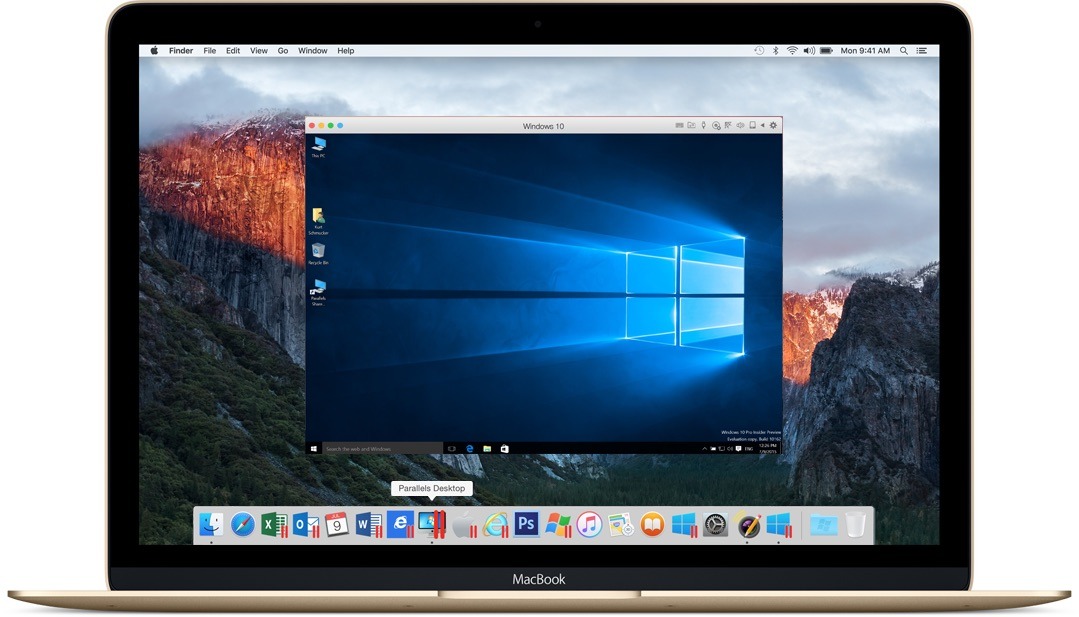
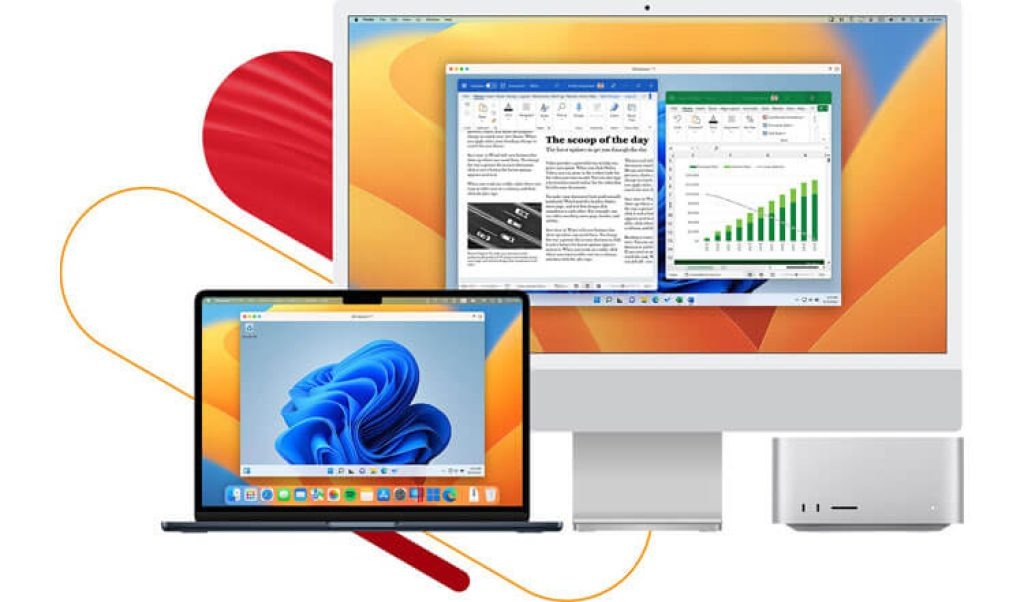
One of the features that absolutely blew me away and cemented my appreciation for Parallels Desktop is “Coherence mode.” Instead of seeing a full Windows desktop within a window on your Mac, Coherence mode allows individual Windows applications to appear directly on your macOS desktop, in your Dock, and even in your Launchpad. They behave just like Mac applications, sharing clipboards, drag-and-drop functionality, and even Notification Center integration. It’s truly magical and transforms the experience from “running Windows” to “running a Windows app on my Mac.”
My Experience: From Skeptic to Superfan
My journey with Parallels Desktop started with a specific need. I was working on a project that required a very old, specialized data analysis tool that was only compatible with Windows 7. Yes, Windows 7! My Mac was running the latest macOS, and Boot Camp wasn’t an option due to the age gap and the hassle. I downloaded the Parallels Desktop trial with a healthy dose of skepticism, remembering my past frustrations with other VM solutions.
Initial Setup: Easier Than I Expected
The installation process was surprisingly straightforward. Parallels Desktop guides you through downloading and installing a copy of Windows (if you don’t already have an ISO) directly onto your virtual machine. It’s not just a blank canvas; it intelligently suggests optimizations based on what you’ll primarily use Windows for (e.g., productivity, development, gaming). Within an hour or so, I had a fully functional Windows 7 environment running on my MacBook Pro. No partition management, no complicated bootloaders – just a simple setup wizard.
Performance: My Old Data Tool Felt Brand New
The moment of truth came when I installed that ancient data analysis tool. I braced myself for crashes and freezes. To my astonishment, it installed flawlessly and ran without a hitch. The responsiveness was incredible. I could crunch numbers, generate reports, and interact with the software as if it were running natively. My Mac’s powerful processor and ample RAM were being put to good use, and Parallels Desktop seemed to be making the most of it.
Beyond that specific tool, I started experimenting. I needed QuickBooks for my small business, and while there’s a Mac version, some of my older files and specific features my accountant used were tied to the Windows desktop version. Running QuickBooks in Coherence mode was a game-changer. It felt like a native Mac app, sitting right in my dock alongside Safari and Pages. I could drag-and-drop files between my Mac documents and QuickBooks seamlessly. This level of integration truly redefines what it means to run multiple operating systems.
I even dabbled in some light gaming. Nothing too demanding, mind you, but old favorites like Age of Empires II Definitive Edition or RollerCoaster Tycoon Classic, which sometimes have better community support or specific mods on Windows, ran perfectly well. It’s not going to replace a dedicated gaming PC, but for strategy games, older titles, or less graphically intensive games, Parallels Desktop holds its own, especially on modern Apple Silicon Macs with their impressive GPU performance.
One anecdote I often share is from a freelance project where a client sent me a highly specific CAD file type that only their Windows-based software could open properly for initial review. I didn’t have access to that software, and asking them to convert it would have delayed the project. Thanks to Parallels Desktop, I was able to quickly set up a fresh Windows VM, install a trial of the necessary software, open the file, take screenshots, and provide feedback – all without ever leaving my Mac environment or causing any project delays. That kind of agility is invaluable.
Beyond the Basics: Features I Appreciate
While Coherence mode and raw performance are fantastic, Parallels Desktop offers a suite of other features that make the experience even better:
- Snapshots: This is an absolute lifesaver. Before installing potentially buggy software or making significant changes to my Windows VM, I can take a “snapshot.” If something goes wrong, I can revert my entire virtual machine to that previous state in minutes. It’s like a time machine for your Windows environment, perfect for testing software or just peace of mind.
- Shared Folders & Cloud Integration: You can set up shared folders that are accessible from both macOS and Windows, making file management incredibly easy. Plus, it integrates well with cloud services like Dropbox and OneDrive, so your files are always accessible regardless of which OS you’re in.
- USB Device Support: Need to plug in a specialized USB device, like a particular printer, scanner, or even a hardware dongle that only has Windows drivers? Parallels Desktop handles it elegantly, allowing you to connect those devices directly to your virtual machine. I’ve used this for an old label printer that just wouldn’t play nice with macOS drivers.
- Parallels Toolbox: While a separate offering, Parallels Desktop often comes bundled with Parallels Toolbox, a collection of single-purpose utilities that can be incredibly useful on both Mac and Windows, like clean drive, record screen, convert video, etc. It’s a nice bonus that adds even more value.
If you’re still on the fence, or just curious to see how seamless your workflow could become, I highly recommend checking out the official site. They often have trials available so you can experience it for yourself: Visit Official parallels desktop Website Now
A Glimpse at What Others Are Saying (Customer Feedback)
It’s not just my personal experience that champions Parallels Desktop. Across forums and reviews, you find a consistent theme of satisfaction from users who were once in the same boat as me. Here’s what I’ve gathered from real users:
“I procrastinated buying Parallels Desktop for years, thinking Boot Camp was ‘good enough.’ Boy, was I wrong! The ability to run my old tax software and a specific engineering tool simultaneously with my Mac apps is a game-changer. Setup was a breeze, and it’s surprisingly fast on my M2 MacBook Air.” – Sarah K.
“As a developer, I often need to test applications on different Windows versions. Parallels Desktop’s snapshot feature alone makes it worth every penny. I can create a clean test environment, mess it up, and then revert back in minutes. Performance is stellar, even with multiple VMs running.” – David L.
“Coherence mode is pure genius. I run a specific Windows-only CRM software for work, and I barely even notice it’s not a native Mac app. It integrates perfectly into my workflow, appears in the dock, and uses my Mac’s file system effortlessly. Highly recommended for anyone needing Windows apps on their Mac without the headache.” – Maria P.
“I just needed to run one specific legacy accounting package for my business, and Parallels Desktop has been a lifesaver. My old MacBook Pro (Intel) handles it perfectly, and my new M3 Pro machine absolutely flies. No more maintaining a separate Windows laptop!” – Tom H.
Who is Parallels Desktop For? (And Who Might Not Need It?)
While I’m a huge advocate, it’s important to understand if Parallels Desktop is the right fit for *your* specific needs.
You’re the Ideal User If:
- You need specific Windows-only applications: This is the primary reason for most users. Whether it’s specialized industry software, legacy apps, or development tools not available on macOS, Parallels Desktop is your bridge.
- You value a seamless workflow: If the thought of rebooting for Boot Camp or dealing with clunky virtualization solutions gives you a headache, Parallels Desktop’s integration (especially Coherence mode) will be a breath of fresh air.
- You’re a developer or IT professional: Testing across different OS versions, creating isolated environments, and quickly switching between systems makes Parallels Desktop an indispensable tool.
- You have an Apple Silicon Mac: Running ARM-based Windows on your M1, M2, or M3 Mac is incredibly efficient and performs exceptionally well with Parallels Desktop.
- You dabble in light PC gaming: For many older titles or less demanding modern games, Parallels Desktop can provide a surprisingly good experience without needing a separate Windows machine.
You Might Not Need It If:
- You only use Mac-native applications: If your entire digital life exists within the macOS ecosystem and you never encounter a Windows-only requirement, then Parallels Desktop might be overkill.
- You’re a hardcore PC gamer: While Parallels Desktop can handle some games, it’s not designed to replace a dedicated Windows gaming rig for the latest AAA titles at ultra settings. For that, you’ll still want a native Windows machine.
- You have extremely limited storage: Running a virtual machine requires disk space for Windows itself and any applications you install. While you can manage its size, it’s something to consider if your Mac is already bursting at the seams.
Versioning and Pricing (A Quick Look)
Parallels Desktop comes in a few different flavors, catering to various user needs:
- Standard Edition: Perfect for most home and student users who need to run Windows applications.
- Pro Edition: Geared towards developers, designers, and power users, offering more robust features like greater VM RAM/CPU allocation, integration with development tools, and advanced networking.
- Business Edition: For organizations, with centralized management, volume licensing, and enhanced security features.
Parallels offers both subscription-based licenses (which ensure you always have the latest version, including updates for new macOS and Windows releases) and perpetual licenses for specific versions. I personally opt for the subscription as it keeps me current and compatible with new operating system updates without extra steps. It’s an investment, yes, but for the convenience and power it offers, I find it well worth the cost.
Ready to reclaim your Mac’s full potential? Explore the options and see what works best for you. Find out more here: Visit Official parallels desktop Website Now
My Final Verdict on Parallels Desktop
In conclusion, Parallels Desktop has fundamentally changed how I use my Mac. It has eliminated the frustration of needing Windows apps and replaced it with a seamless, high-performance experience. I no longer feel constrained by my choice of operating system; instead, I feel empowered by the flexibility Parallels Desktop provides.
If you’re a Mac user who occasionally, or even regularly, finds themselves needing to run Windows applications, you owe it to yourself to try Parallels Desktop. It’s more than just a virtual machine; it’s a bridge that brings the best of both worlds together, allowing you to maximize your productivity and unleash new possibilities on your beloved Mac.
It’s simply the most elegant and efficient way to run Windows on a Mac, hands down. Say goodbye to reboots and frustrating workarounds, and hello to true cross-platform synergy.
Ready to experience the seamless integration and powerful performance yourself? You can learn more and get started today by visiting the official website:
Visit Official parallels desktop Website Now
Or, if you’re convinced and just looking for the link to get started with your own virtual journey: